

V1.0 | August 2026
1. Product Introduction
The LX Series is Nablai's high-performance AI module, built on the ESP32 platform with built-in AI voice interaction, emotion recognition and on-device ASR (Chinese/English). It supports Wi-Fi + BLE provisioning and can be extended with touch sensing, gravity sensing, vibration feedback, local TF card playback and camera vision.
Unlike the Tuya solution, the LX Series runs on Nablai's in-house cloud platform and independent account system, ships with the Nablai app and WeChat Mini Program, and offers B2B customers end-to-end deep customization from software to wake word, helping brands bring their own AI toy products to market quickly.
1.1 Core Customization Capabilities LX exclusive
The greatest strength of the LX Series is deep customization. Every item below can be tailored to your brand, with no need for your brand to build its own R&D team:
| Customization item | Description | Lead time |
|---|---|---|
| 📱 Custom app | Build a brand-exclusive app on top of the Nablai app: brand name, logo, UI style, feature entry points | Assessed on request |
| 💬 Custom WeChat Mini Program | A brand-exclusive WeChat Mini Program; users can provision, manage and chat with the device entirely inside WeChat | Assessed on request |
| 🗣️ Custom wake word | The wake word can be set to your brand character (e.g. "Hi, Dongdong") to build a voice identity unique to your IP | Fast delivery |
| 👤 Independent account system | In-house cloud platform; user data belongs to the brand, with no reliance on third-party IoT platform accounts | — |
| 😊 Custom expressions / interaction logic | Emotion Eyes expressions and touch/gravity interaction feedback can be adjusted to your brand | Fast delivery |
| 🎵 TF card content customization | Preload brand-exclusive audio that can be requested by voice directly during an AI conversation | Fast delivery |
1.2 Comparison of the Four Editions
| Feature | LX-D Base edition |
LX-A Advanced edition |
LX-F Full edition |
LX-S Vision edition |
|---|---|---|---|---|
| AI voice conversation | ✓ | ✓ | ✓ | ✓ |
| Emotion Eyes (dual screens) | ✓ | ✓ | ✓ | ✓ |
| On-device ASR (Chinese/English) | ✓ | ✓ | ✓ | ✓ |
| App / Mini Program / wake word customization | ✓ | ✓ | ✓ | ✓ |
| Touch sensing | — | ✓ | ✓ | ✓ |
| Gravity sensing | — | ✓ | ✓ | ✓ |
| Vibration feedback | — | ✓ | ✓ | ✓ |
| Local TF card playback (voice-requestable in conversation) | — | — | ✓ | ✓ |
| Camera vision | — | — | — | ✓ |
1.3 Comparison of the Two Form Factors
| Item | LX001 split version | LX002 all-in-one version |
|---|---|---|
| Form factor | Main unit and panel separate | Main unit and panel integrated |
| Main unit dimensions | 3.9 × 4.0 × 3.0 cm | 5.4 × 4.3 × 3.0 cm |
| Switch type | Slide switch | Push button |
| Network reset | Toggle the switch 3 times in a row | Press and hold MODE button for 7 seconds |
| Battery | 600 mAh | 1000 mAh |
1.4 Product Appearance
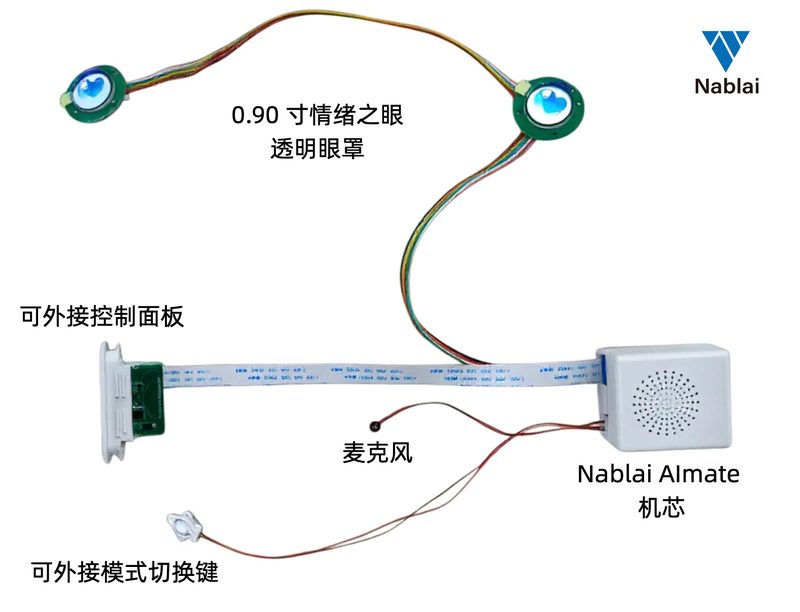
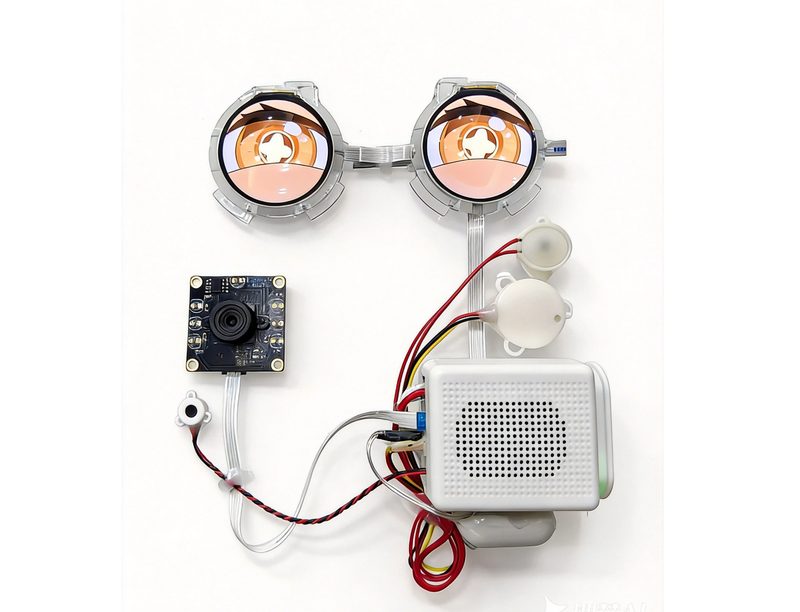
2. Hardware Specifications
All LX module peripherals are pre-assembled and ready to use out of the box. Hardware specifications for each module are listed below:
| Module | Specifications |
|---|---|
| Main Control Platform | ESP32-series MCU |
| Eye screens | Supports 0.71" / 0.90" / 1.28" round screens and a 0.85" square screen |
| Speaker | LX001: 8Ω 2W; LX002: 4Ω 3W box speaker |
| Microphone | High-sensitivity analog microphone, effective pickup range 3 m |
| Touch module | Capacitive touch sensing, for housing thickness ≤ 3 mm (A/F/S editions) |
| Vibration motor | Micro eccentric motor with linked touch/gravity feedback (A/F/S editions) |
| Push button | LX001: slide switch; LX002: push button; the external button supports mode switching and wake-up |
| Power | DC 5 V input; LX001: 600 mAh, LX002: 1000 mAh |
| Camera | S edition only, 0.92 MP CMOS |
| Connectivity | Wi-Fi + BLE (Bluetooth-assisted provisioning) |
2.1 Assembly Guidelines
- Main unit: point the speaker opening forward and keep it unobstructed
- Eyes: can be mounted directly into plush, or fitted with a silicone or vinyl face shell
- Microphone: must be firmly mounted; keep it 5–10 cm from the speaker opening, as far as possible, to reduce echo
- Touch: mount on the inner surface of the head or back, firmly attached
- the external button: can be installed in a hand or foot, and must be secured
- Camera(S edition): keep the area in front of the lens clear for an unobstructed view
3. First Power-On
3.1 Connect Power
Power the module from a DC 5 V supply (5 V/1 A or higher recommended), or make sure the battery is installed and sufficiently charged.
3.2 Power On
- LX001 (split version): slide the switch to ON and wait for the screen to light up.
- LX002 (all-in-one version): press and hold the power button for 5 seconds, and the screen lights up to confirm power-on.
3.3 Confirming Power-On Status
On first power-on, the module enters provisioning mode automatically. When you hear the voice prompt "I'm ready to be set up" , the module is ready for provisioning.
| Status | Description |
|---|---|
| Voice prompt: "I'm ready to be set up" | The module is ready for app / Mini Program provisioning (default on first power-on) |
| Voice prompt: "I'm online" | The module is connected to the network and ready to use |
4. App Provisioning and Use
The LX Series module is configured and managed through Nablai App — provisioning and everyday management. The Nablai app runs on Nablai's in-house cloud platform and can be customized into a brand-specific version.
4.1 Download the App
Search the app store for 「Nablai」 and install it.

4.2 Sign Up / Log In
Open the app, register a Nablai account with your phone number and log in.
4.3 Add a Device
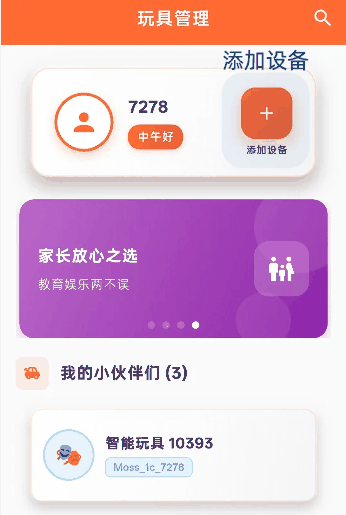
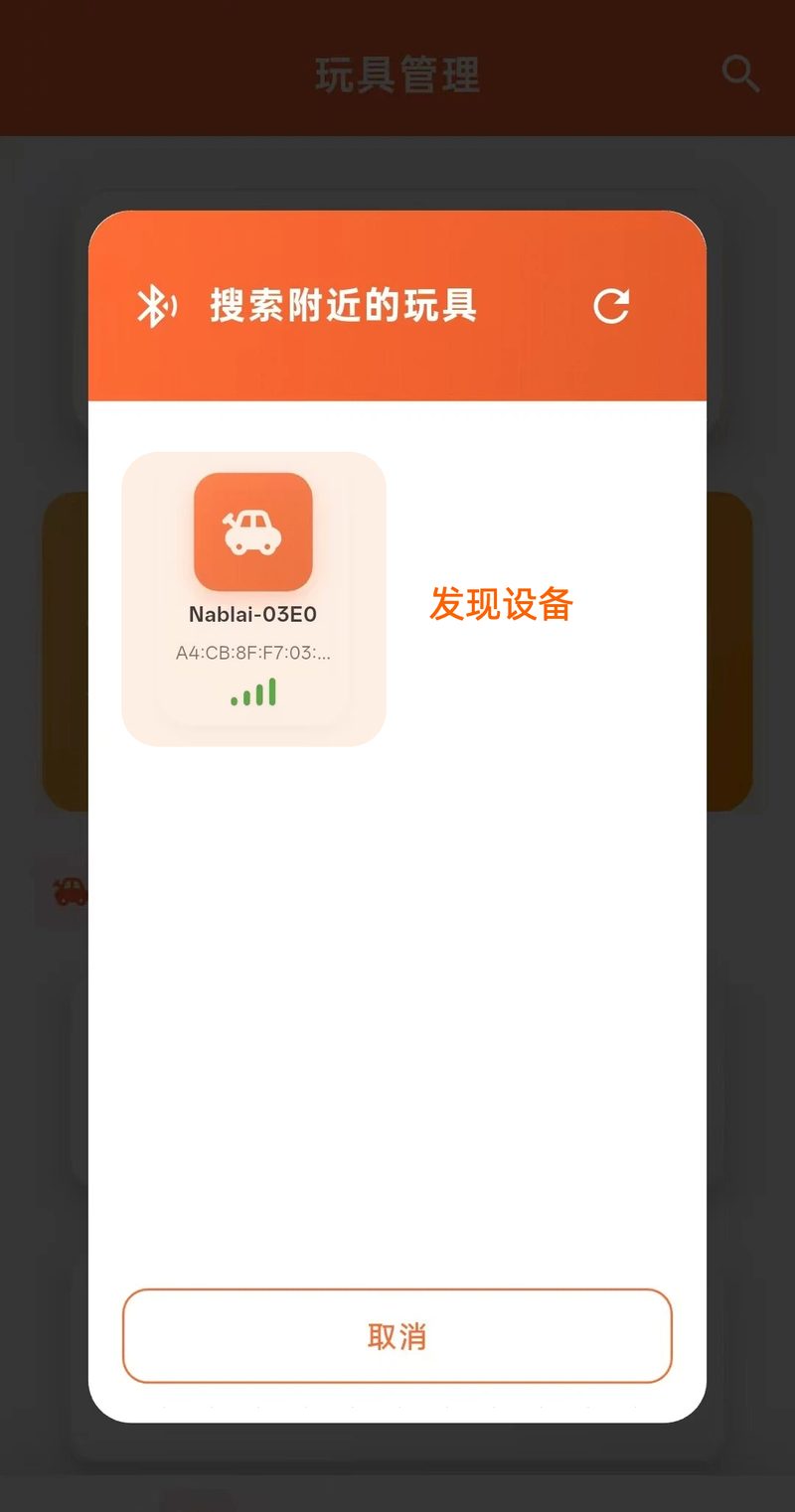
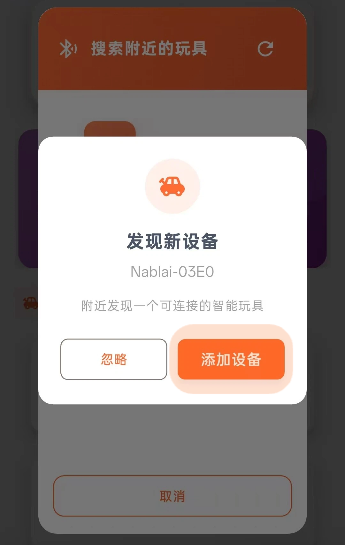
4.4 Connect to the Network
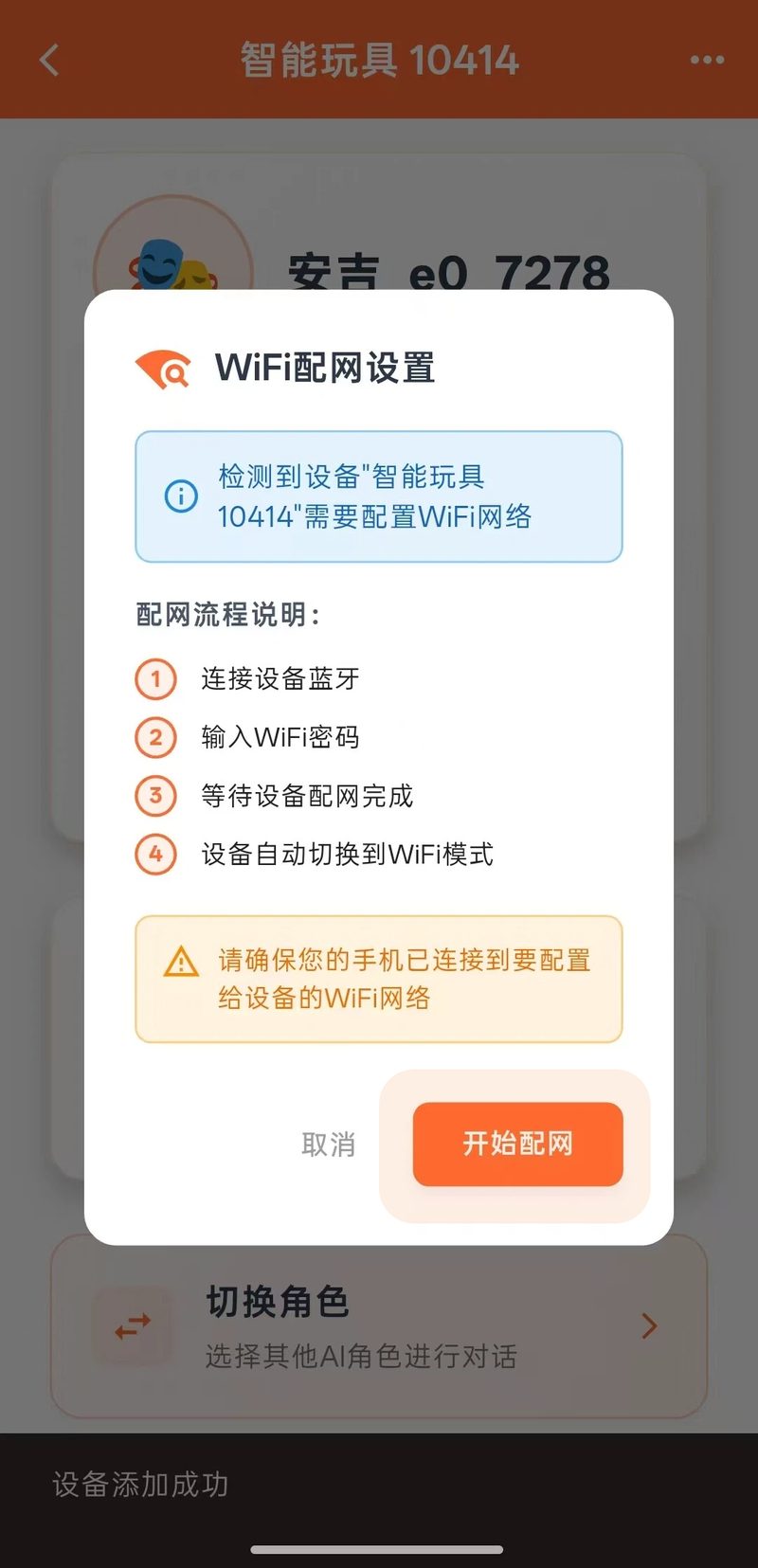
- Tap "Start Provisioning" and follow the prompts to connect to Wi-Fi.
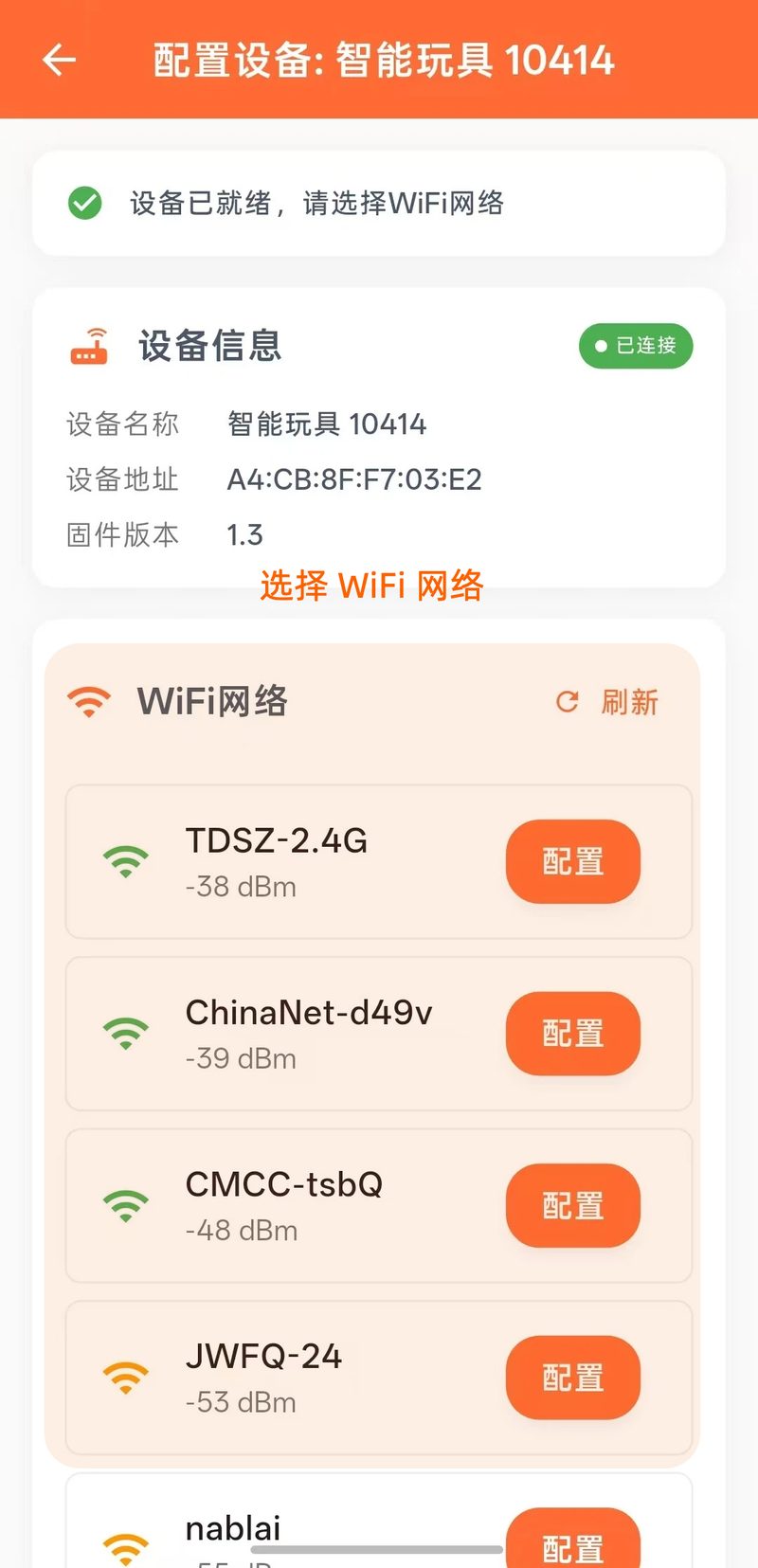
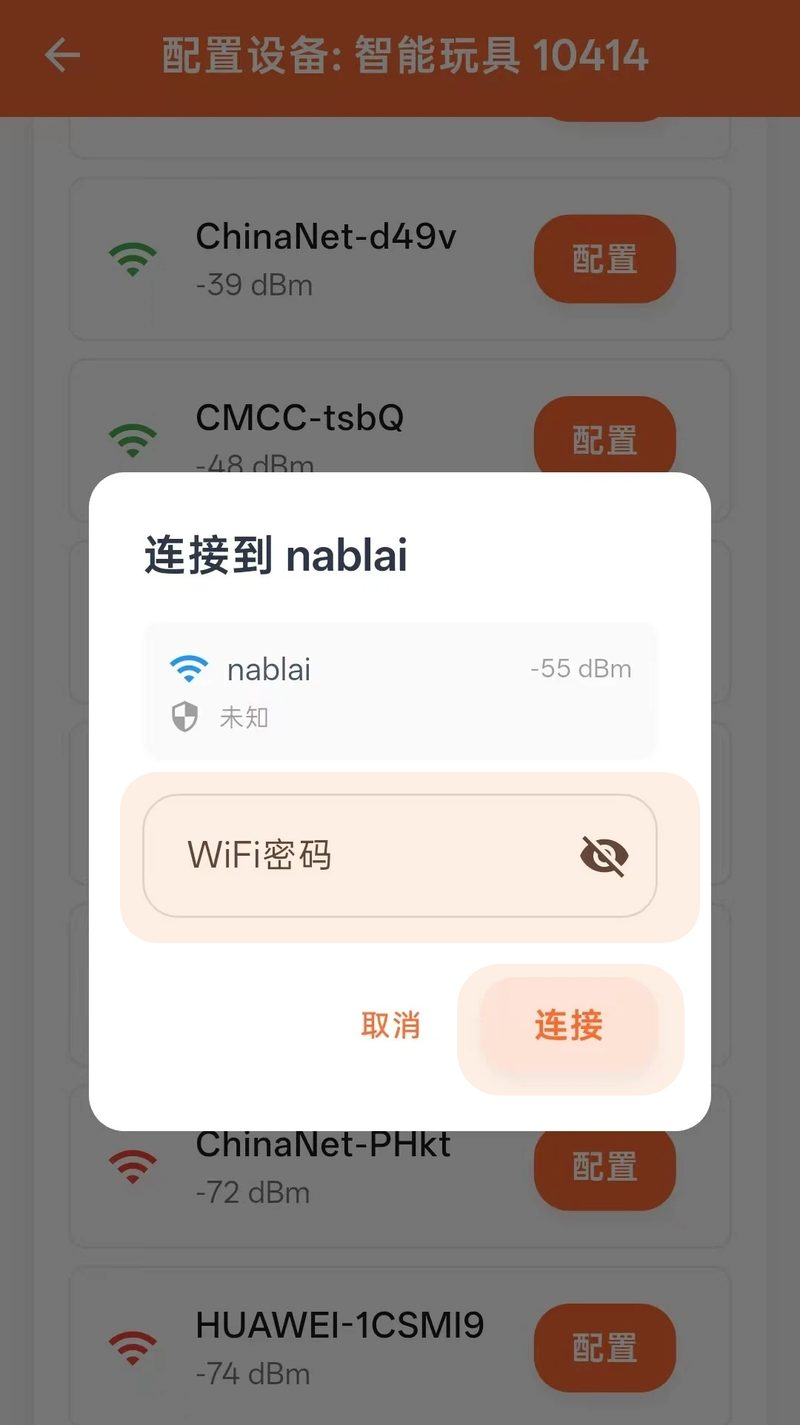
- Select the 2.4GHz Wi-Fi network you want to join, enter the password and tap "Connect".
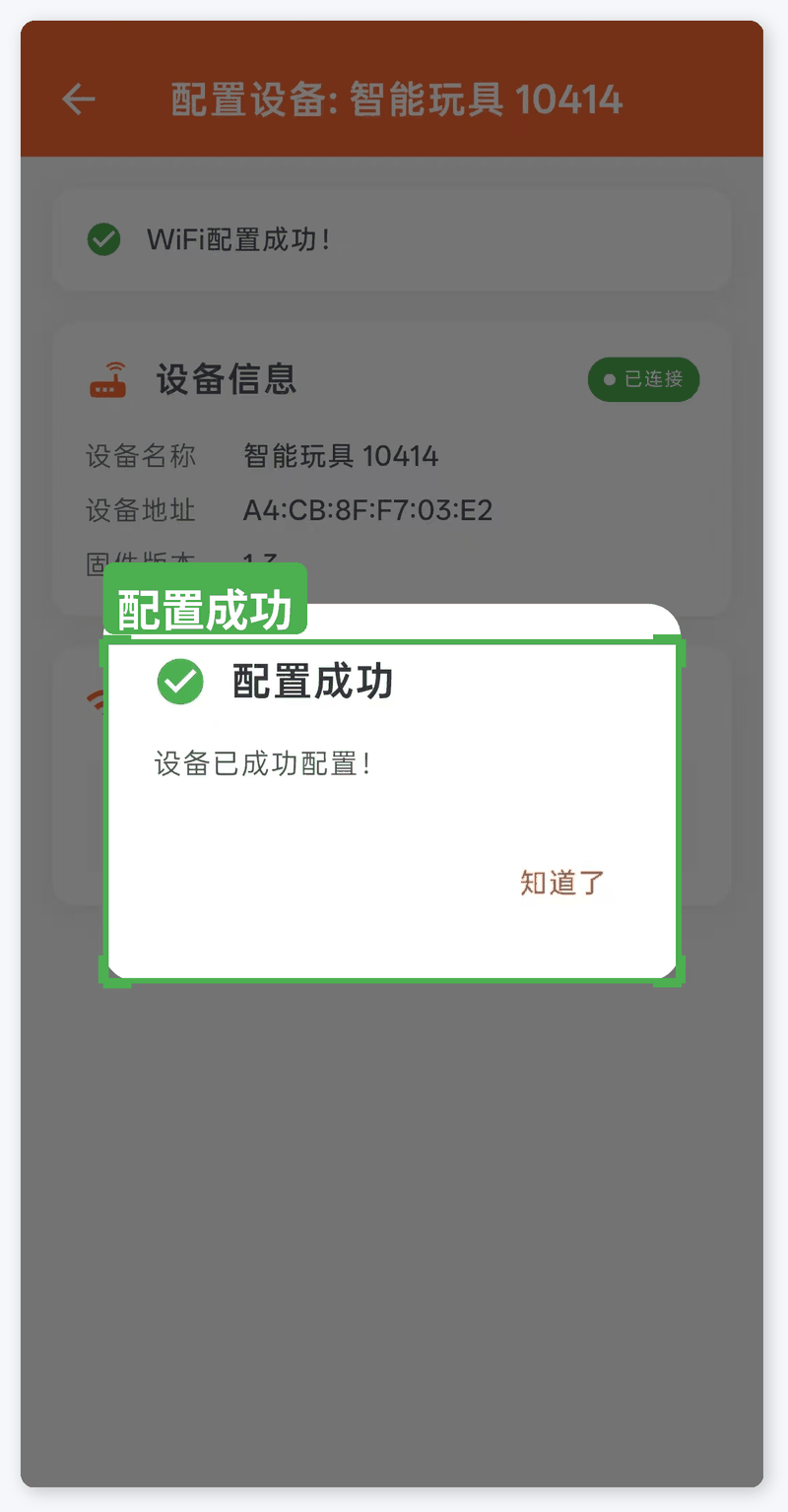
- The app sends the network information to the module over Bluetooth. Wait 10–30 seconds; "Configuration successful" means provisioning is complete.
4.5 Device Management
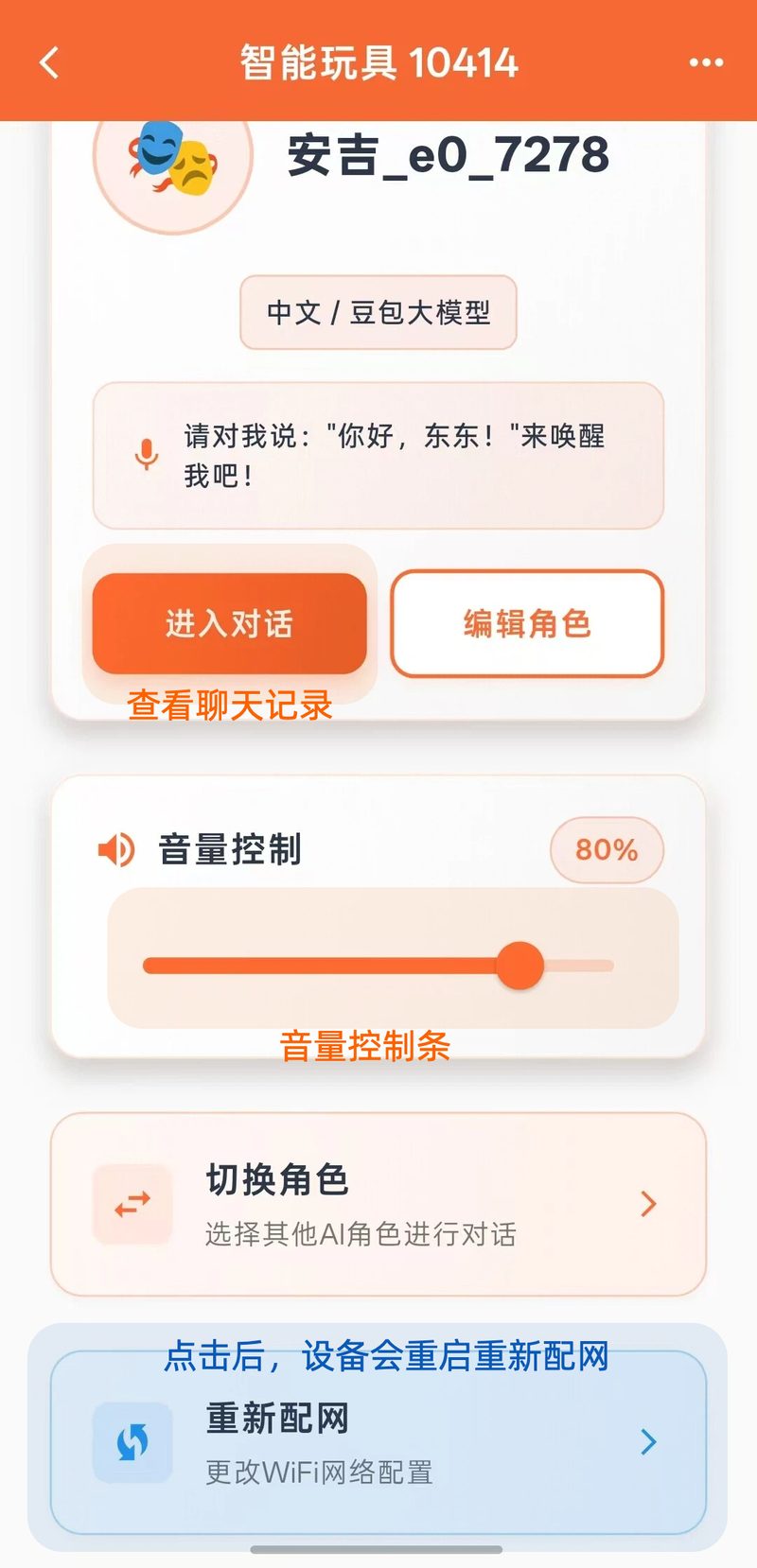
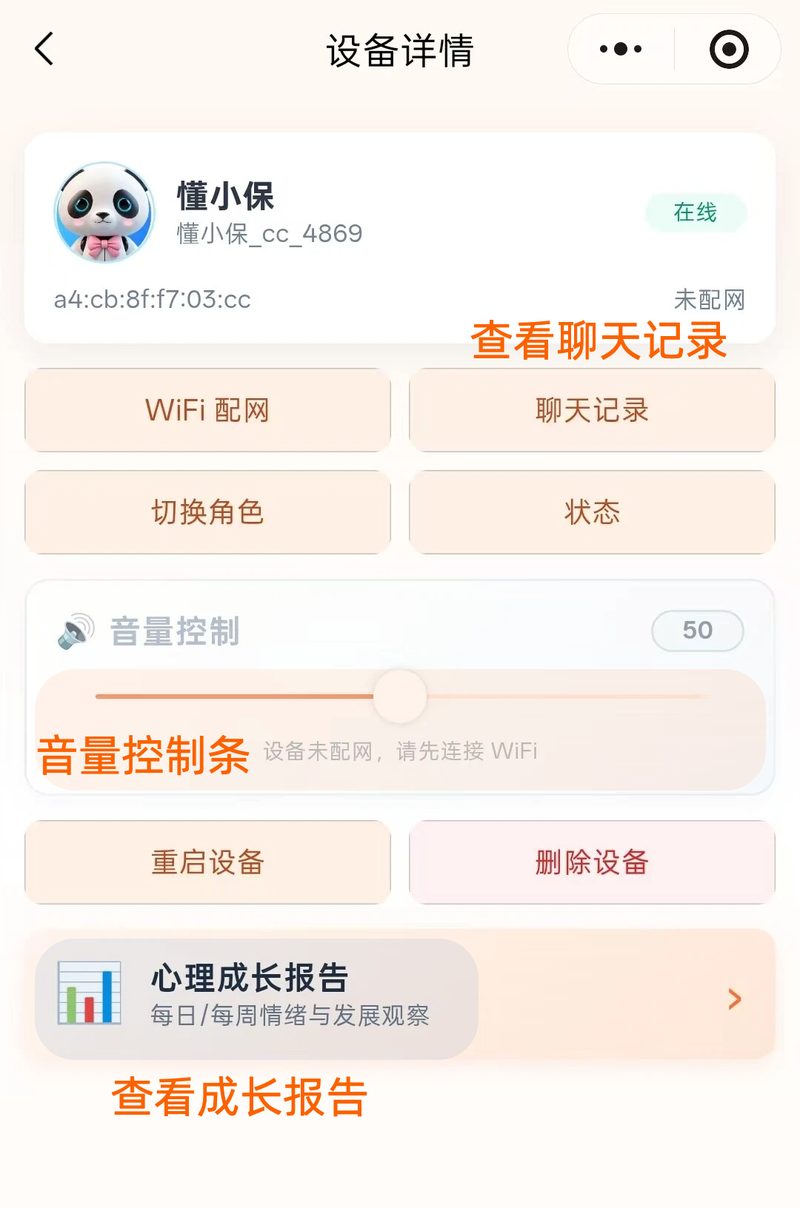
After provisioning, tap the device under "My Little Friends" to open its detail page, where you can:
- Character settings: edit the AI character's personality and backstory
- LLM switching: currently supports "Chinese / Doubao LLM"
- Volume control: drag the slider to adjust playback volume
- Switch character: select another preset AI character
- Re-provision: use when changing Wi-Fi networks
5. Mini Program Provisioning and Use
Besides the app, the LX Series can also be provisioned and managed through the WeChat Mini Program, with nothing to download or install — everything works inside WeChat. The Mini Program can also be customized for your brand.
5.1 Open the Mini Program
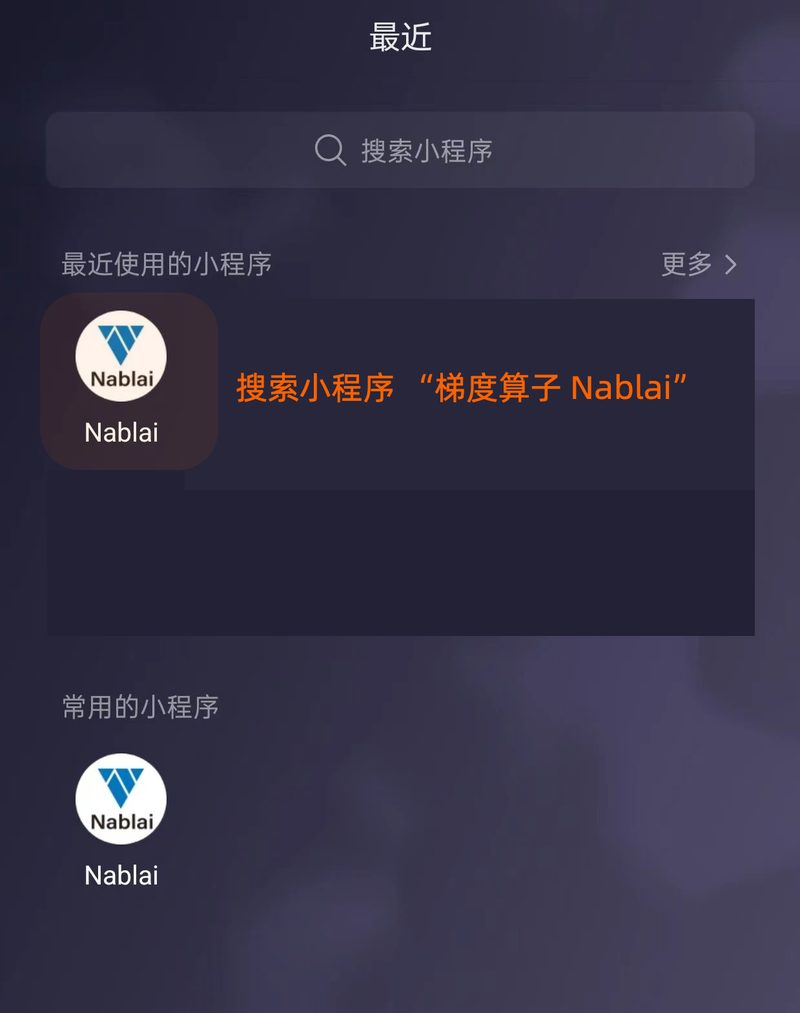
Search WeChat for the "Nablai" Mini Program and open it.
5.2 Log In
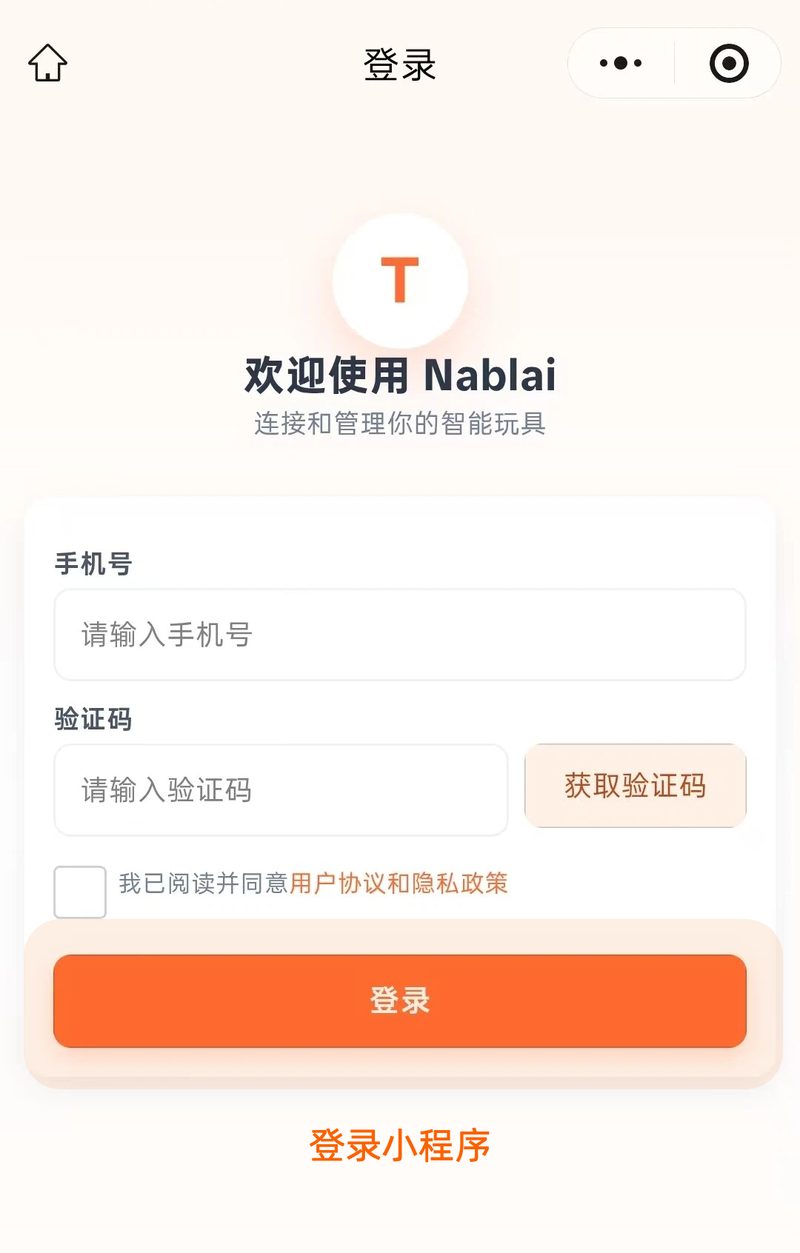
The first time you use it you must log in: enter your phone number and the verification code. The Mini Program and the app share the same independent account system.
5.3 Add a Device
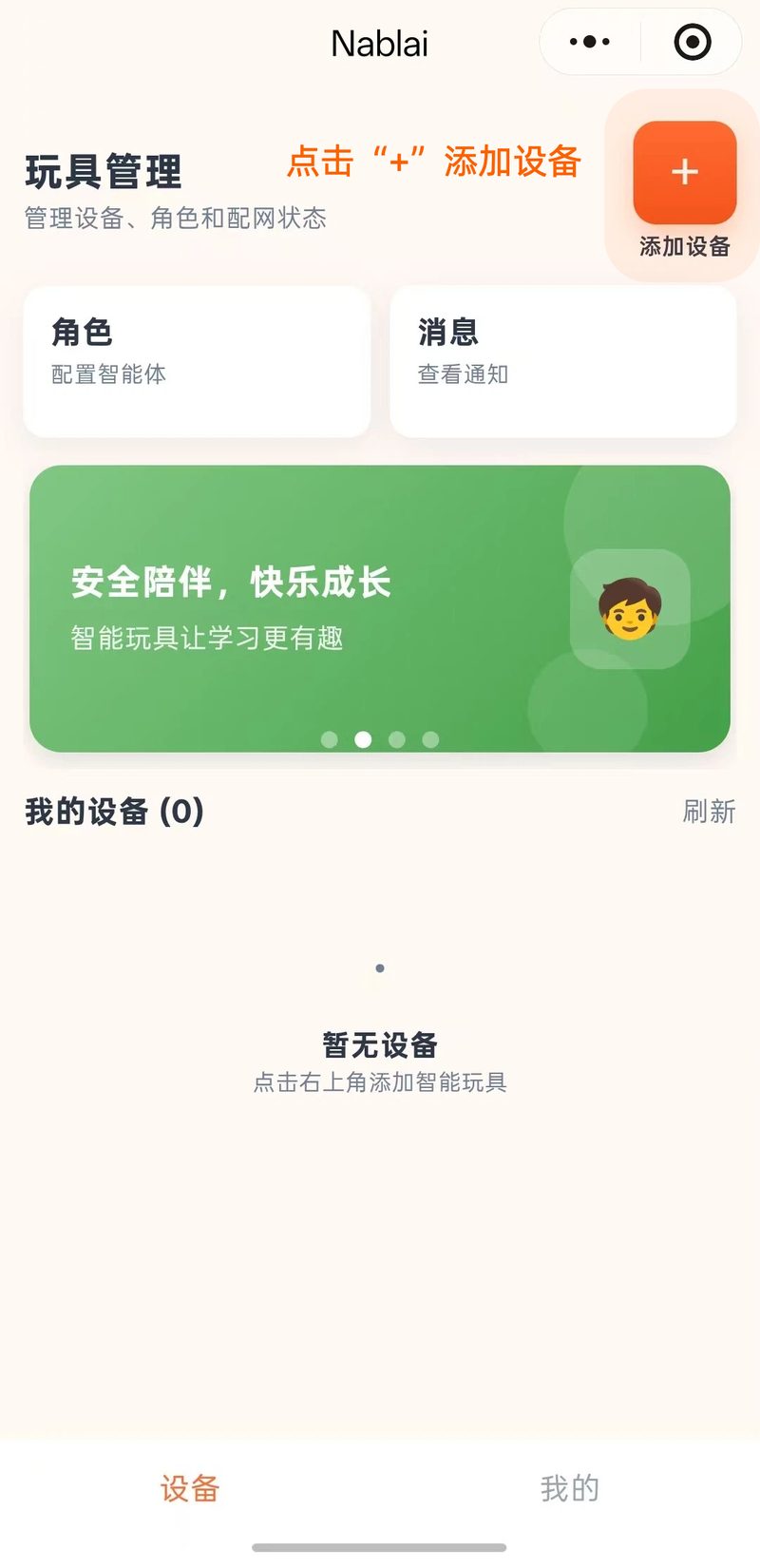
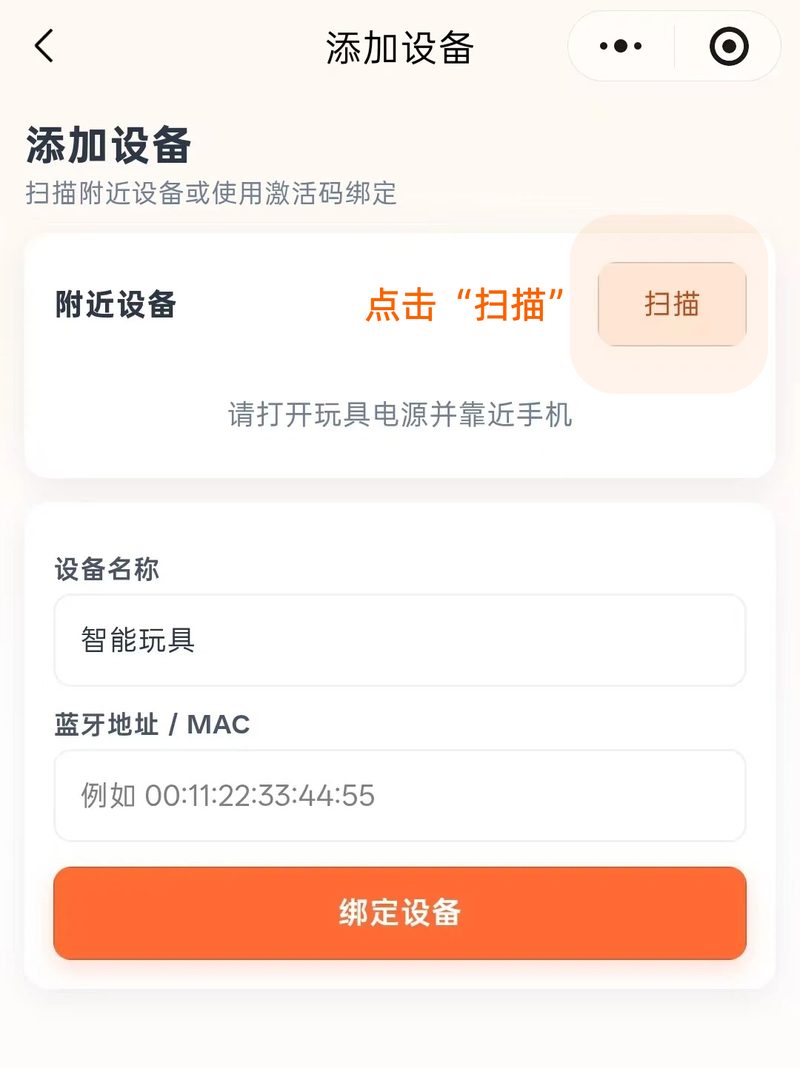
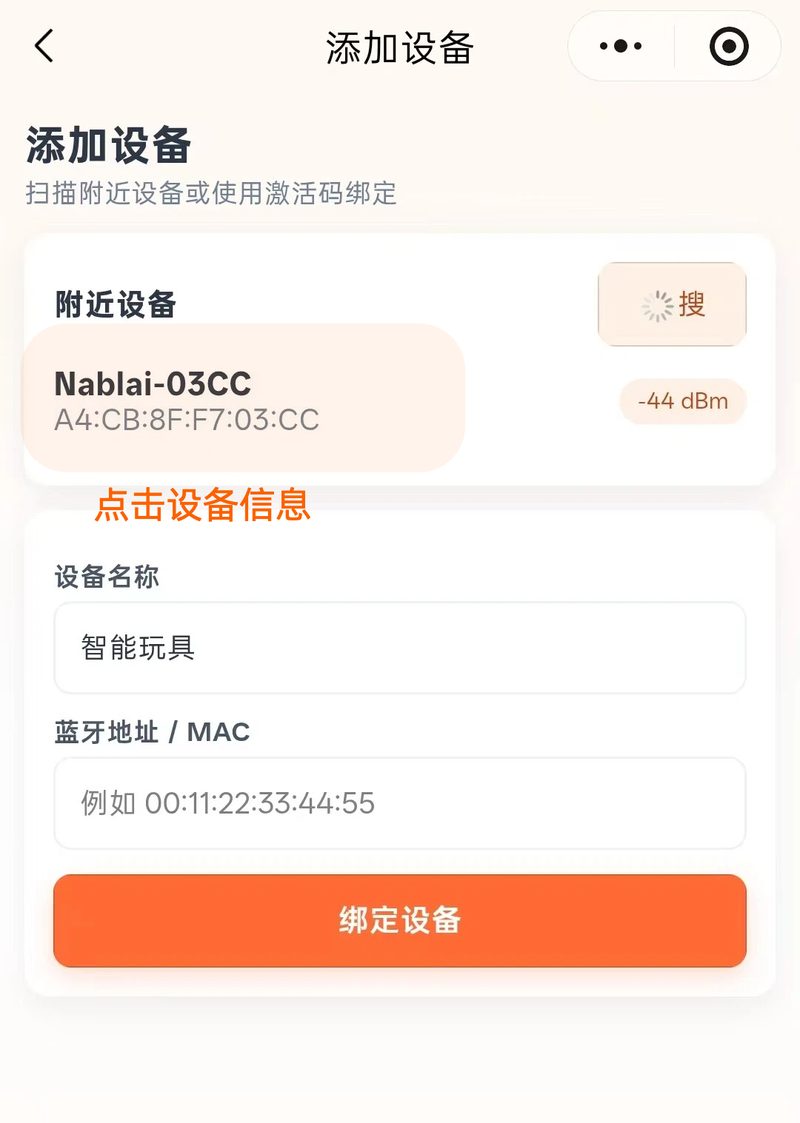
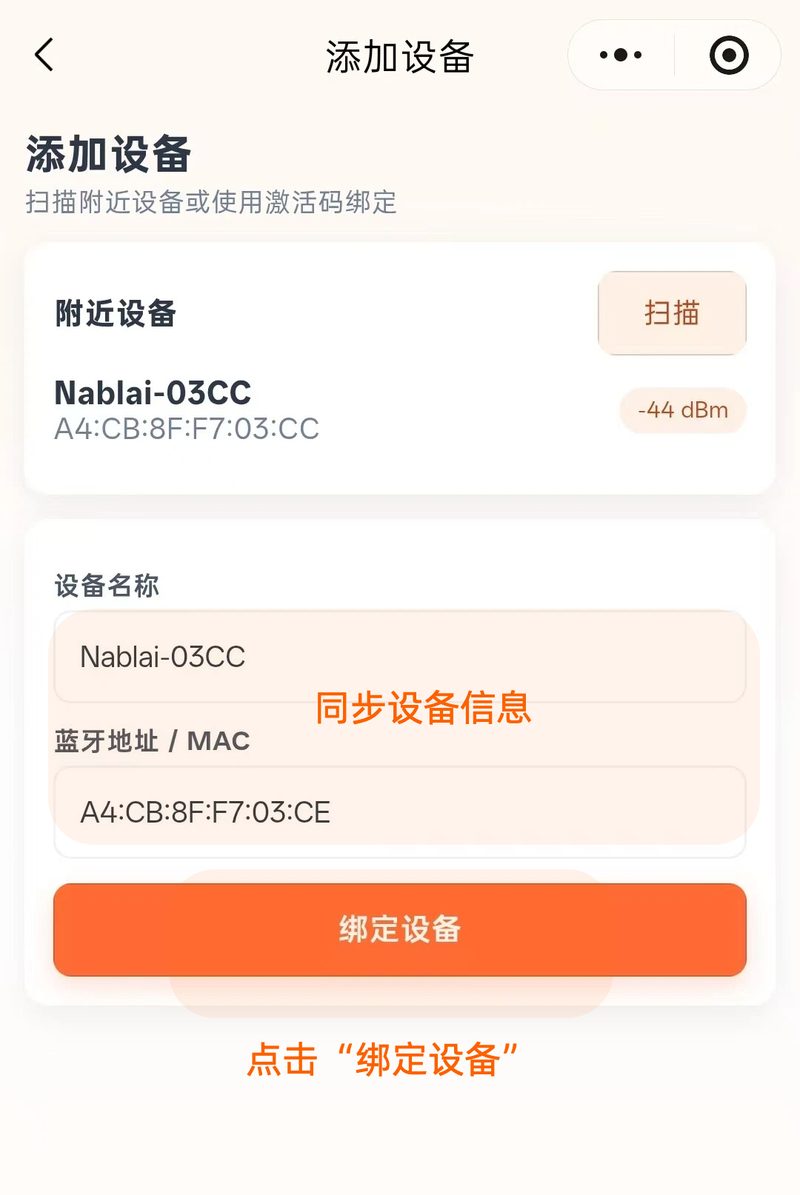
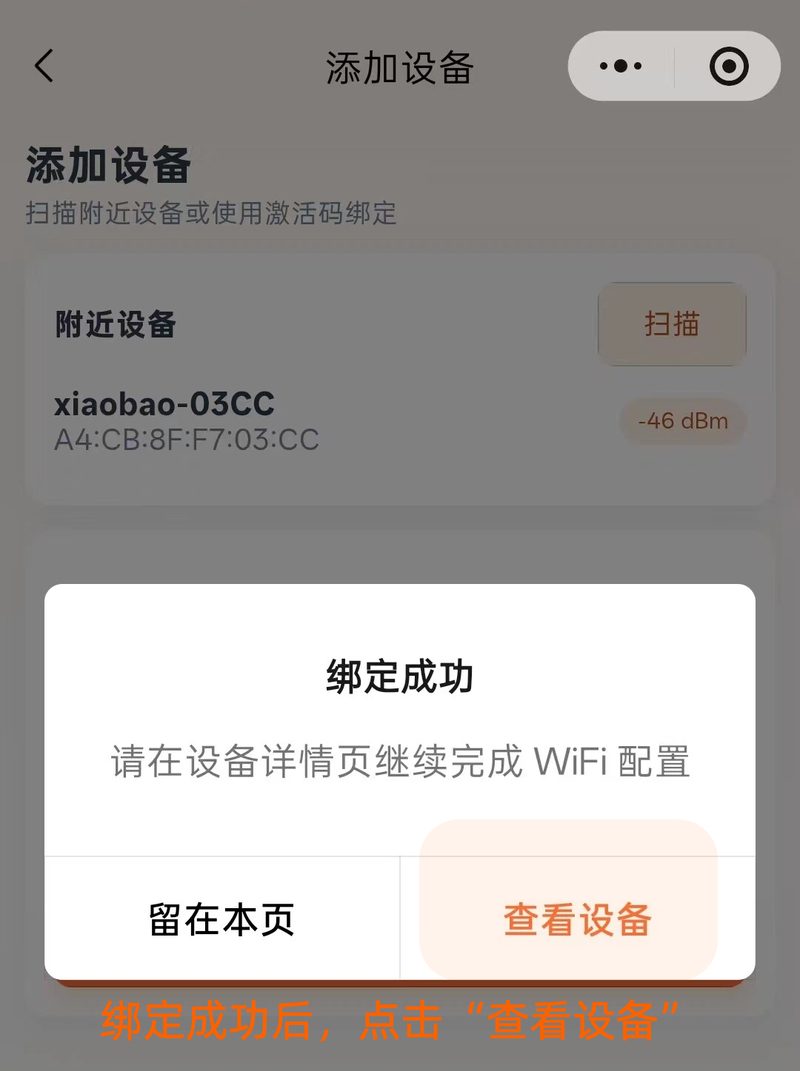
5.4 Wi-Fi Provisioning
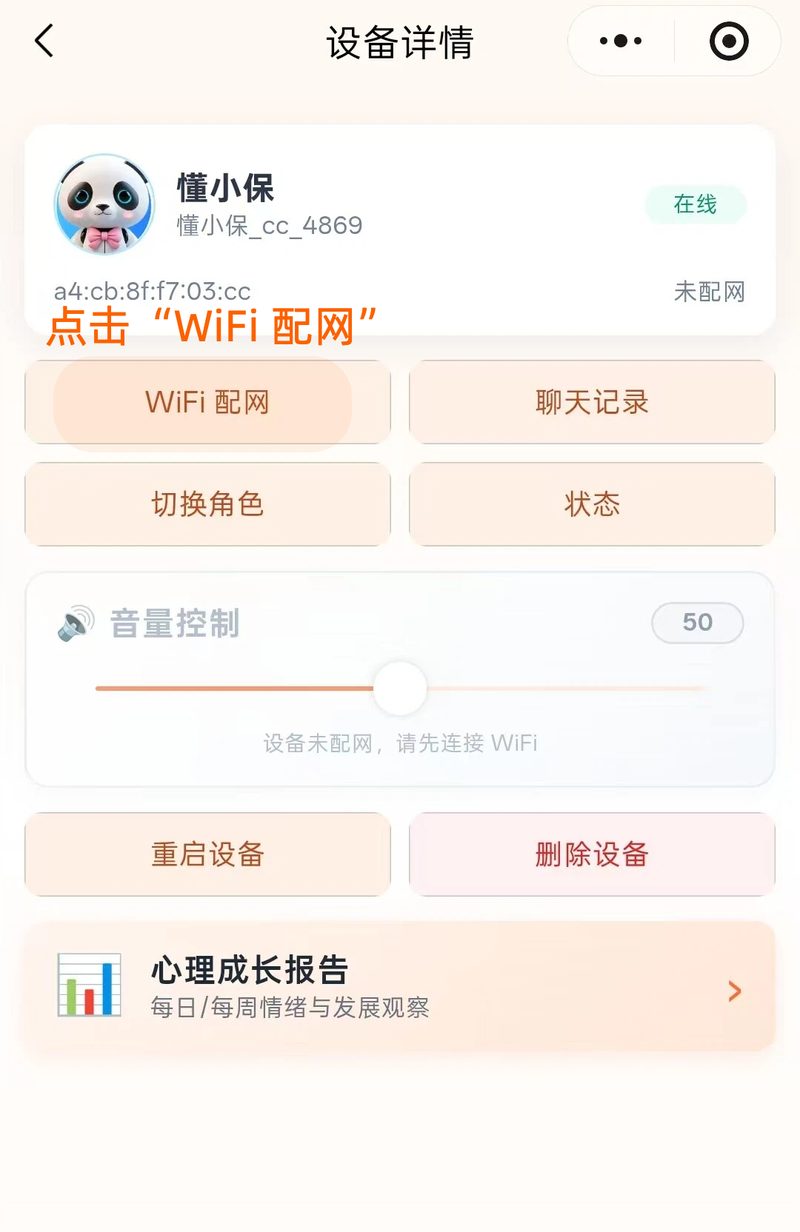
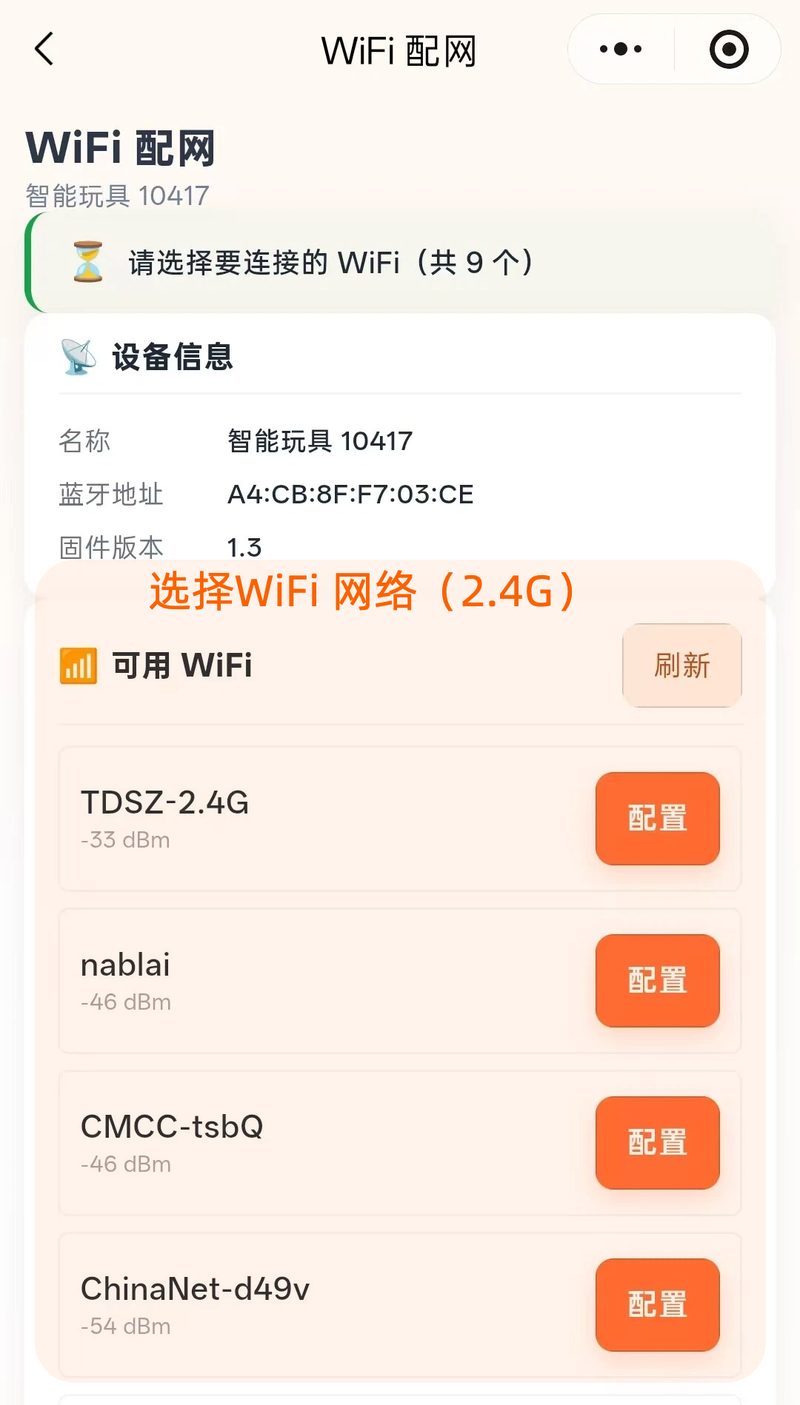
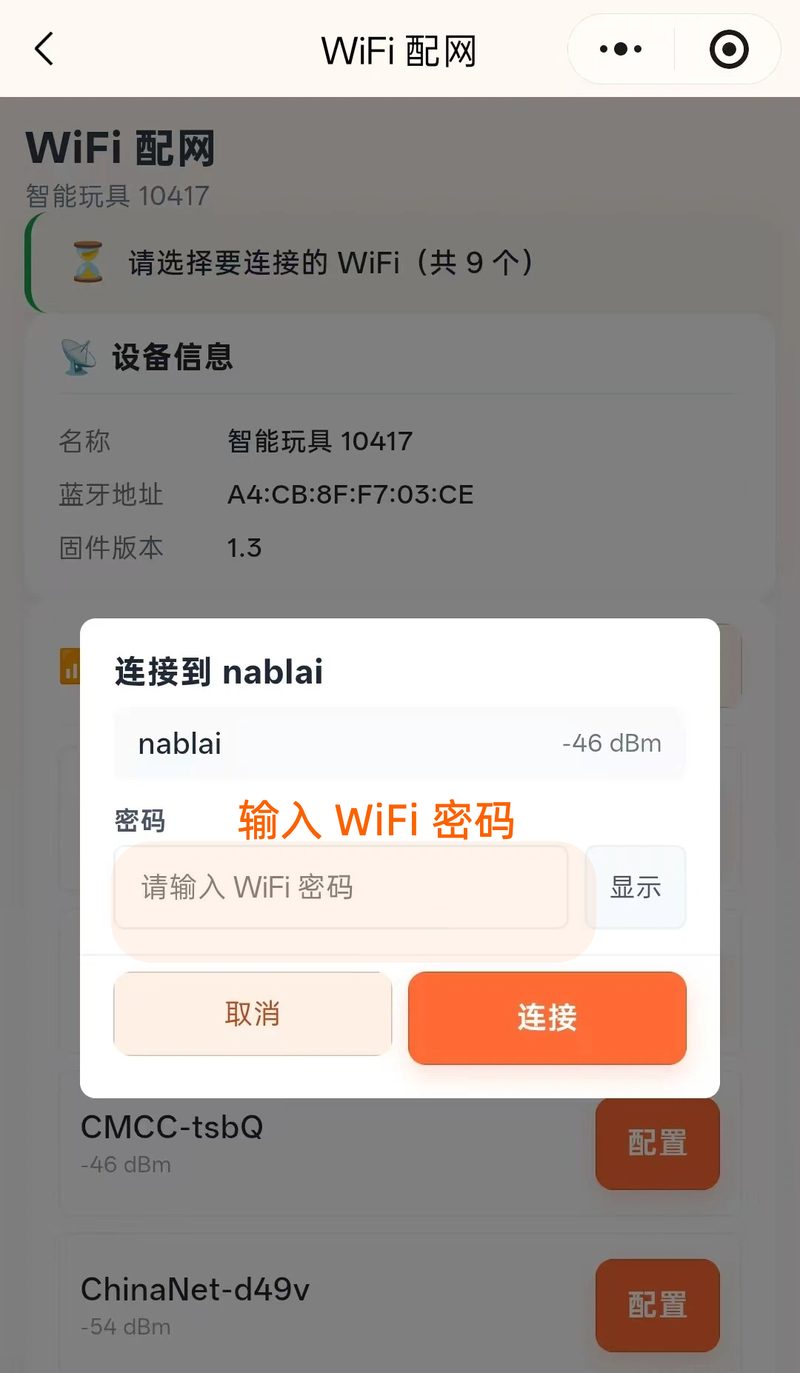
5.5 Device Management
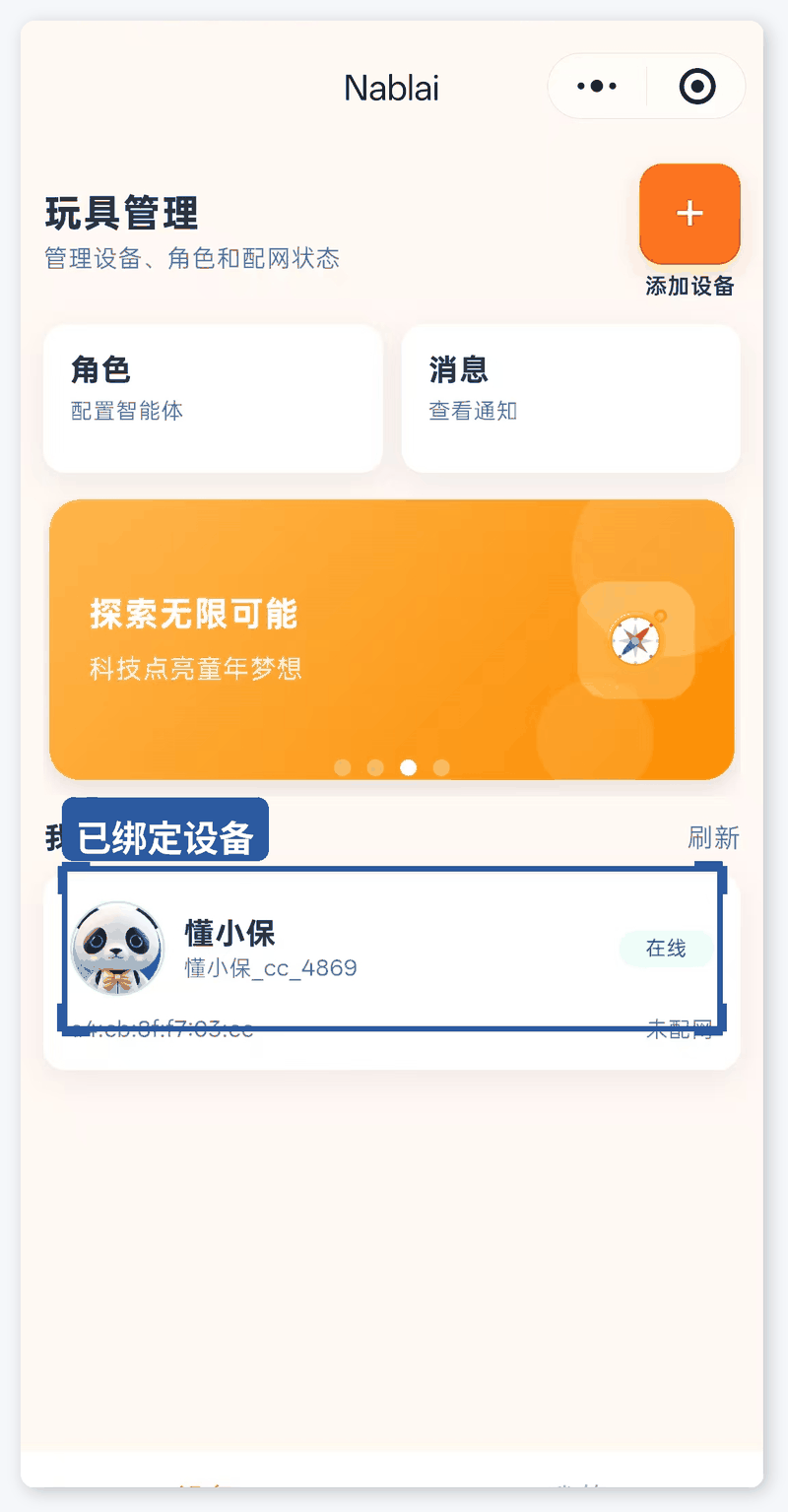
After provisioning, return to the Mini Program home page to see your bound devices. Tap a device to open its detail page, where you can adjust volume, switch characters, view chat history, open the psychological growth report and more.
6. Network reset
To change the Wi-Fi network or provision again, proceed as follows:
LX001 (split version)
- Make sure the module is powered on.
- Quickly slide the switch to OFF and wait for the screen to go dark.
- Then slide the switch back to ON and wait for the screen to light up.
- Repeat the steps above 3 times。
- After the screen lights up the third time, you will hear the voice prompt "I'm ready to be set up", which means the reset succeeded.
- Open the app or Mini Program and add the device again.
LX002 (all-in-one version)
- Make sure the module is powered on.
- Press and hold the MODE button without releasing it, for about 7 seconds。
- , until you hear the voice prompt "I'm ready to be set up", which means the reset succeeded.
- Release the MODE button, then open the app or Mini Program and add the device again.
7. Voice interaction
Once provisioning succeeds, the module is connected to a cloud LLM and supports natural-language conversation.
7.1 Wake Word and Conversation
- Say the wake word to the module (default: "Hi, Dongdong"), and the module responds and enters listening mode.
- Ask a question or chat directly; there is no need to repeat the wake word within 30 seconds.
- It exits automatically after 30 seconds with no input, or say "Goodbye" to end the conversation.
Sample conversations:
- "Hi, Dongdong, what's the weather today?"
- "Hi, Dongdong, tell me a story."
- "Hi, Dongdong, play a nursery rhyme." (F/S editions, plays TF card content directly)
7.2 Emotion Eyes
The two screens change in real time with the interaction state: blinking in standby → focused while listening → spinning while thinking → curved with delight → wide with surprise → asleep after prolonged inactivity.
Expressions can be customized to your brand.
8. Motion interaction A/F/S editions
LX Series modules contain multiple sensors and support a wide range of motion interactions (A/F/S editions):
| Interaction | Action | Module response |
|---|---|---|
| 👆 Touch sensing | Touch the sensing area | Voice response + vibration feedback + expression change |
| 🤚 Shake detection | Shake or tilt the toy | Triggers an interactive action or voice response |
| 📳 Vibration feedback | Triggered automatically | Provides haptic feedback during conversation or interaction |
| 😊 Emotion recognition | During natural conversation | The AI detects emotion and adjusts its tone |
9. Local content playback F/S editions
The module supports Local TF card playback(F/S editions). Unlike conventional solutions, TF card content on the LX Seriescan be requested by voice directly during an AI conversation, with no need to switch modes manually.
9.1 Voice-Requested Playback in Conversation (LX exclusive)
- Give a command directly during an AI conversation, for example:"Play a nursery rhyme", "Tell me a story", "Next track", "Pause"。
- The module searches the local content on the TF card and plays it.
- Ideal for preloading brand-exclusive audio (brand stories, course content, nursery rhyme albums and more).
9.2 Playback Mode
Double-pressthe external button twice to enter local playback mode and play TF card content continuously.
9.3 Updating TF Card Content
- Remove the TF card from the module and connect it to a computer with a card reader.
- Copy audio files (MP3 format) to the TF card.
- Reinsert the card into the module;after a restart it is recognized automatically.
10. Camera recognition interaction S edition
If your sample is equipped with the optional camera module (S edition), the module supports AI vision interaction:
| Feature | Description |
|---|---|
| 😀 Face recognition | Recognizes the user's face for personalized interaction |
| 🔍 Object recognition | Point it at an object; the module identifies it and describes it by voice |
| 🖐️ Gesture recognition | Recognizes gestures and triggers the matching interaction |
How to use:
- Make sure the module is online.
- Place the target 30–100 cm in front of the camera, avoiding direct backlight.
- The module recognizes it automatically and responds by voice, adding visual context to the AI conversation.
11. Firmware Upgrade
- Make sure the device is online and sufficiently charged.
- When the app pushes a new firmware notification, tap "Upgrade Now".
- Wait 2–5 minutes. Do not power off during the upgrade.
- The module restarts automatically once the upgrade is complete.
12. Specifications Quick Reference
| Parameters | LX001 split version | LX002 all-in-one version |
|---|---|---|
| Main unit dimensions | 3.9 × 4.0 × 3.0 cm | 5.4 × 4.3 × 3.0 cm |
| Panel dimensions | 5.3 × 2.1 cm | — |
| Main Control Platform | ESP32-series MCU | ESP32-series MCU |
| Cloud platform / account | In-house cloud platform · independent account system | In-house cloud platform · independent account system |
| Companion app | Nablai app (brand customization supported) | Nablai app (brand customization supported) |
| Companion WeChat Mini Program | WeChat Mini Program (brand customization supported) | WeChat Mini Program (brand customization supported) |
| Wake word | Default "Hi, Dongdong", customizable | Default "Hi, Dongdong", customizable |
| Display | 0.71" / 0.90" / 1.28" × 2 | 0.71" / 0.90" / 1.28" × 2 |
| Camera | 0.92 MP CMOS (optional on the S edition) | 0.92 MP CMOS (optional on the S edition) |
| Connectivity | Wi-Fi + BLE | Wi-Fi + BLE |
| Battery capacity | 600 mAh | 1000 mAh |
| Speaker | 8Ω 2W | 4Ω 3W |
| Shake detection | 3-axis gyroscope (A/F/S editions) | 3-axis gyroscope (A/F/S editions) |
| Touch detection | Touch module (A/F/S editions) | Touch module (A/F/S editions) |
| Vibration motor | Yes (A/F/S editions) | Yes (A/F/S editions) |
| Local storage | TF card ≤ 32 GB (F/S editions, voice-requestable in conversation) | TF card ≤ 32 GB (F/S editions, voice-requestable in conversation) |
| AI conversation | Cloud-based Doubao LLM | Cloud-based Doubao LLM |
| Device housing | ABS, white | ABS + PC, white |
13. Troubleshooting
| Problem | Solution |
|---|---|
| Will not power on | Check that the power supply is 5 V/1 A or higher; make sure the battery is sufficiently charged |
| No "I'm ready to be set up" prompt | An old network configuration is saved. Press and hold the external button for 5 seconds to reset the network. |
| The app / Mini Program cannot find the device | Turn on Bluetooth on your phone, move within <1m of the module and scan again |
| Provisioning failed | Confirm you are on a 2.4GHz Wi-Fi network; check the password; move closer to the router and retry |
| Poor speech recognition | Check that the microphone is not blocked; test in a quiet environment; stay within 3 m |
| Blank screen | Reseat the eye screen ribbon cable and check it for bends or breaks |
| TF card not recognized | Format it as FAT32; confirm capacity ≤ 32GB; use a Class 10 card |
| No response to touch | Confirm the model is an A/F/S edition; check that housing thickness is ≤ 3mm; reseat the touch module |
| Frequent disconnections | Improve the Wi-Fi signal or move closer to the router; use a more stable power supply |
| Camera not recognizing | Confirm the unit is an S edition with the optional camera; improve the lighting and avoid backlight |
14. Safe Use
- Do not use in humid, high-temperature or flammable environments.
- Adult supervision is recommended for children to prevent swallowing small parts.
- Disconnect the power supply if the device will not be used for a long time.
- Do not disassemble the module yourself, as this may cause damage or void the warranty.